The “Notion experience” is a set of block-level interactions on top of a structured document: hover a block for a drag handle, grab it to reorder with a live drop line, press / for an insert menu, or “Turn into” to convert a heading into a to-do list. The hard part is shipping all of that headless, so the same block editor works in every framework instead of being locked to one.
Domternal takes a different route: the entire block layer is plain ProseMirror plugins, not framework components. The slash menu, hover handle, drag-to-reorder, “Turn into”, block and inline colors, to-do nesting, toggles, and a scroll-spy table of contents are all headless and MIT licensed. They behave identically whether you mount the editor through the React, Angular, Vue, or Vanilla wrapper. And because each one is a separate extension, you load only the pieces you actually want.
What “block editing” actually is
Notion’s magic isn’t one feature. It’s a handful of small interactions that all agree on the same idea: every paragraph, heading, list, and quote is a block you can summon, transform, recolor, and move without ever touching the keyboard’s arrow keys if you don’t want to.
In Domternal that’s a few extensions working together. @domternal/extension-block-menu carries most of the interaction layer: the slash menu, the hover handle, drag-to-reorder, the block context menu (“Turn into”, Duplicate, Copy link), keyboard reordering, and a smart paste that keeps block structure intact instead of flattening it to plain text. @domternal/extension-toc adds the scroll-spy outline and an inline /toc block, @domternal/extension-details adds collapsible toggles, and a few core pieces fill in the rest: BlockColor, the inline NotionColorPicker, UniqueID for stable block ids, and the to-do list nodes.
They’re all just extensions. They register ProseMirror plugins and contribute items through the same addFloatingMenuItems() hook the core uses. Nothing in them knows or cares which framework renders the page.
The slash menu
Type / at the start of a line and a filtered popup of insertable blocks appears under the cursor. Keep typing to filter: /head narrows to the headings, /todo jumps to the to-do list. Arrow keys move the selection, Enter inserts, and the /query text you typed is deleted before the block lands so you never have to clean up after it.
import { SlashCommand } from '@domternal/extension-block-menu';
SlashCommand.configure({  char: '/',                 // the trigger character, '/' by default  invalidNodes: ['codeBlock'], // don't hijack '/' inside code});
The list of items isn’t hard-coded into the slash menu. It’s collected from whatever extensions you loaded, so the menu grows automatically as you add features. Each item can declare a hideWhenInside rule too, which is how “Bullet list” politely disappears from the menu when your cursor is already inside one.
One detail that’s pure Notion: the menu only opens when you actually type /. Pasting text that contains a slash, inserting it programmatically, undo/redo, or clicking next to a / that’s already sitting there will not reopen it, so a dismissed slash just becomes plain text. Opening the menu also broadcasts a single “dismiss everything else” signal, so you never end up with two floating menus fighting over the same corner.
The block handle: hover, grab, add
Hover the left gutter next to any block and a handle fades in. It has two buttons: a six-dot grip and a plus.
The plus inserts an empty paragraph below and opens the insert menu, so adding a block is one click. The grip does two jobs depending on how you use it: click it to open the block’s context menu, or drag it to move the block.
import { BlockHandle } from '@domternal/extension-block-menu';
BlockHandle.configure({  nested: true,   // list items and task items get their own handles, Notion-style  hideDelay: 200, // grace period so the handle doesn't vanish as you reach for it});
That nested: true is worth a sentence. With it off, only top-level blocks are draggable. With it on, individual list items and task items resolve their own handles, so you can grab one bullet out of a list and drop it somewhere else, exactly like Notion.
The block context menu: Turn into, Duplicate, Copy link
Click the grip instead of dragging it and the block context menu opens. It’s the BlockContextMenu extension, and it carries the actions you reach for most: Delete, Duplicate, Copy link, a Colors submenu, and a “Turn into” section.
Turn into converts the current block to another type. The defaults cover the blocks people actually convert between: Paragraph, Heading 1, Heading 2, Heading 3, Bullet list, Ordered list, To-do list, Quote, and Code block.
The menu is smart about what it offers. It hides the block type you’re already in (converting a paragraph into a paragraph is a no-op), it hides list and quote targets when an ancestor is already that type, and it won’t offer Quote inside a list item because the schema doesn’t allow a blockquote there. You only ever see conversions that will actually work.
Duplicate copies the block with its content, marks, and attributes intact, and regenerates the block’s unique id on the copy so deep links never collide. Delete removes it, and if you delete the last block in the document it drops in a fresh empty paragraph so the editor never ends up in an invalid empty state. Small things, but they’re the difference between “feels finished” and “feels like a demo”.
import { BlockContextMenu } from '@domternal/extension-block-menu';
BlockContextMenu.configure({  copyLinkEnabled: true, // show "Copy link" (needs UniqueID for stable block ids)  // turnIntoTargets: [...] to customize the "Turn into" list});
Copy link writes a #block-id URL to your clipboard. It shows up only when UniqueID is loaded and the block actually has an id, and it pairs with the table of contents, which reads the URL hash on load and scrolls straight to that block. That’s the full Notion “copy link to block” round-trip, headless.
Drag-to-reorder, and the drop line that gets nesting right
This is the part that took the most care. When you drag a block, a line follows the cursor to show where it will land. A flat reorder is easy. The interesting case is lists.
In Notion, where you drop horizontally decides the outcome. Drop a block lined up with the list and it becomes a sibling item. Drag it to the right, past the marker, and it becomes a nested child. Domternal mirrors that: the drop indicator is a solid line for a sibling drop and switches to a dashed, indented line once you cross a horizontal threshold into nested-child territory.
BlockHandle.configure({ nested: true, nestThreshold: 28, // px from the list item's left edge before a drop nests autoScroll: true, // scroll the page when you drag near the top or bottom edge});nestThreshold is the x-distance you have to cross before the drop commits to nesting. Set it to 0 and every drop stays a sibling. There’s also an auto-scroll loop so dragging a block to the far end of a long document scrolls the page for you, with the speed ramping up the closer you get to the edge instead of lurching.
A drop in the gutter, or in the gap between two blocks, still lands on the nearest block instead of quietly doing nothing. And because the drop indicator and the actual drop are computed by the same function, the line never lies about where the block will end up.
Prefer the keyboard? KeyboardReorder moves the current block with Mod-Shift-ArrowUp and Mod-Shift-ArrowDown, reusing the exact same move logic as the drag path so the two never disagree.
A small detail that makes it feel right: Enter shouldn’t open a menu
Early on, the insert menu popped up on every empty line. It sounds helpful. It isn’t. In Notion, a blank line is just a blank line with a faint “Press ’/’ for commands” hint, and the menu only shows when you ask for it.
So the floating menu has an opt-in for exactly that behavior:
import { FloatingMenu } from '@domternal/extension-block-menu';
FloatingMenu.configure({  requireExplicitTrigger: true, // menu only opens via the + button or by typing '/'});
With that flag on, pressing Enter gives you a clean empty paragraph and nothing else. The menu is there the instant you click the plus or type a slash, and invisible the rest of the time. It’s a tiny change that’s the difference between “feels like Notion” and “feels like an editor pretending to be Notion”.
Blocks that hold other blocks: to-dos and toggles
Some blocks aren’t just one line: they hold other blocks. A list item or a to-do item is a label line plus a children zone underneath it: press Enter at the end of the label for a sibling, or add blocks below and they nest under that single bullet or checkbox, exactly like Notion’s indented sub-content. The same paragraph block* model backs bullet lists, ordered lists, and to-do lists, so nesting behaves identically across all three. To-dos get the shortcuts you’d expect: [ ] and [x] start an unchecked or checked item, Mod-Enter ticks the current one, and Mod-Shift-9 toggles a to-do list.
The toggle is the other one: Notion’s little triangle that collapses a block and everything tucked under it. It ships as @domternal/extension-details, built on the native <details> and <summary> elements so it’s accessible and degrades to plain HTML, and it shows up in the slash menu as “Toggle block”.
import { Details } from '@domternal/extension-details';
Details.configure({  persist: true, // remember the open/closed state in the document});
Toggles cooperate with the rest of the block layer too: convert into and out of them from the context menu, drag them around with their contents, and when you follow a table-of-contents link to a heading inside a collapsed toggle, the toggle opens itself so the heading is actually visible.
Color, inline and per-block
Notion has two kinds of color: a whole-block tint and an inline color on a run of text. Domternal ships both.
BlockColor tints an entire block’s text or background from a fixed nine-color palette - gray, brown, orange, yellow, green, blue, purple, pink, red - wired into the block context menu’s Colors section as text and background swatch rows plus a clear button.
import { BlockColor } from '@domternal/core';
editor.chain().focus().setBlockBgColor('blue').run();editor.chain().focus().unsetBlockColors().run(); // clear text + background
For inline color there’s NotionColorPicker, the swatch panel that drops into the selection (bubble) menu with nine text colors and nine backgrounds. The key design choice is that both store named tokens (data-text-color="red"), not raw hex. The theme maps each token to a CSS custom property with separate light and dark values, so the same saved document renders correct, readable colors in both themes without you storing theme-specific markup. And because color is “last action wins”, tinting a whole block strips any conflicting inline color underneath it, so you never get unreadable text sitting on a colored block.
The scroll-spy outline
Long documents need a table of contents, and Notion’s is the good kind: a column of ticks pinned to the side that expands into full headings on hover, with the tick for the section you’re reading highlighted as you scroll.
@domternal/extension-toc is three extensions you opt into separately:
import { TableOfContents, // collects headings, owns the active-id state FloatingTocOutline, // the hover-to-expand outline pinned to the side TableOfContentsBlock, // an inline /toc block you can drop in the doc} from '@domternal/extension-toc';The scroll-spy is the part I’m happiest with. It tracks the active heading with an IntersectionObserver, falls back to a throttled scroll calculation for the edges, and crucially it can follow a container’s scroll, not just the window. That matters because a real app usually scrolls the editor inside a panel, not the whole page. Pass the scroll container and the outline tracks against it:
FloatingTocOutline.configure({ anchor: 'editor', // stick to the editor container, or 'viewport' for full-page activeScrollParent: panel, // the element that actually scrolls});Clicking a tick smooth-scrolls to that heading and updates the URL hash, and it ignores scroll updates for a moment afterward so the highlight lands where you clicked instead of flickering on the way there. Heading IDs come from the core UniqueID extension, so the outline reads stable ids it doesn’t have to generate itself.
Those are two separate surfaces, by the way. FloatingTocOutline is the side rail; TableOfContentsBlock is an inline /toc block you drop into the document body from the slash menu, rendering the same live outline inline and sharing the rail’s active-heading state (with a friendly placeholder until the document has headings). Both route through the same scrollToHeading, and because it writes the URL hash, a link you copied to a block will, on next load, scroll the reader straight to it.
Putting it together
A full Notion-style setup is just a list of extensions:
pnpm add @domternal/core @domternal/extension-block-menu @domternal/extension-toc @domternal/extension-details @domternal/themeimport { Editor, StarterKit, UniqueID, BlockColor,} from '@domternal/core';import { FloatingMenu, BlockHandle, BlockContextMenu, SlashCommand, KeyboardReorder, SmartPaste,} from '@domternal/extension-block-menu';import { TableOfContents, FloatingTocOutline, TableOfContentsBlock,} from '@domternal/extension-toc';import { Details } from '@domternal/extension-details';
const editor = new Editor({ element: document.querySelector('#editor')!, extensions: [ StarterKit, // paragraphs, headings, lists, to-dos, history UniqueID, // stable block ids for TOC + copy-link FloatingMenu.configure({ requireExplicitTrigger: true }), BlockHandle.configure({ nested: true }), BlockContextMenu, SlashCommand, KeyboardReorder, SmartPaste, BlockColor, Details, TableOfContents, FloatingTocOutline, TableOfContentsBlock, ], content: "<p>Press '/' for commands</p>",});That’s the headless core. If you’re in a framework, you wrap the same editor in @domternal/react, @domternal/angular, @domternal/vue, or @domternal/vanilla. The block layer doesn’t change. The slash menu, the handles, the drop line, the block colors, the outline: all identical, because none of it lives in the framework layer.
And it stays small. Domternal’s own code is about 44 KB gzipped (around 117 KB with ProseMirror itself), and because every block is a separate extension your bundler strips whatever you don’t import. Want the slash menu but not toggles? Leave Details out and it’s gone from the bundle entirely.
Why a headless, framework-agnostic block editor
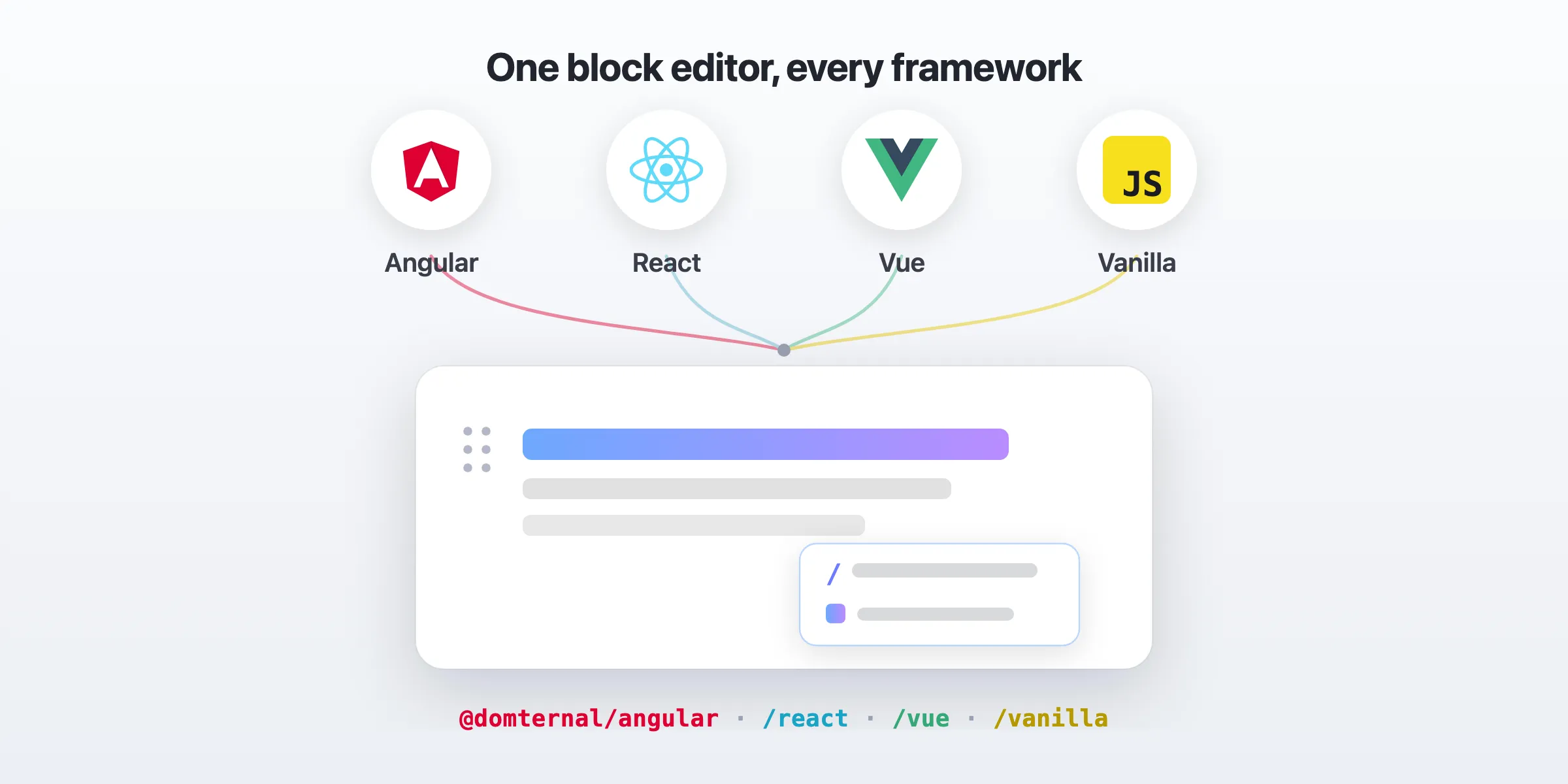
Three reasons, the same three that started the project. It’s composable: every piece is its own extension, so you assemble the exact editor you want and your bundler drops the rest. It’s framework-agnostic: the block layer is plain ProseMirror, so it behaves the same in React, Angular, Vue, and Vanilla, with no “the drag handle only works in React” footnote. It’s MIT: block editing, drag-to-reorder, the outline, the color picker, and toggles are all free, with nothing behind a paid tier.
Try it
Notion Mode guide: domternal.dev/v1/guides/notion-mode
Website: domternal.dev
Getting started: domternal.dev/v1/getting-started
Packages & bundle size: domternal.dev/v1/packages
GitHub: github.com/domternal/domternal
The live editor on the homepage runs the full block setup, slash menu and handles included, so you can grab a paragraph and drag it around right now.
What’s next
The block layer is broad and tested, but there’s always more Notion to chase. The big one is arbitrary nesting. Today any block can be reordered, and list, to-do, and toggle blocks hold children, but you can’t yet nest an arbitrary paragraph under another paragraph the way Notion does. The plan is to ship that as an opt-in package so the default editor keeps emitting clean semantic HTML and stays lightweight, and you only take on nesting’s complexity when you actually want it. Columns and a synced-block style reference are the other obvious targets.
If you put this in front of a real document and something feels even slightly off compared to the editor you’re used to, that’s exactly the feedback I want.
What’s the one block interaction you can’t live without? Tell me in the comments and I’ll see if it’s already an extension away.